Whitespace Detection: Surface Silent Delivery & Reporting Failures
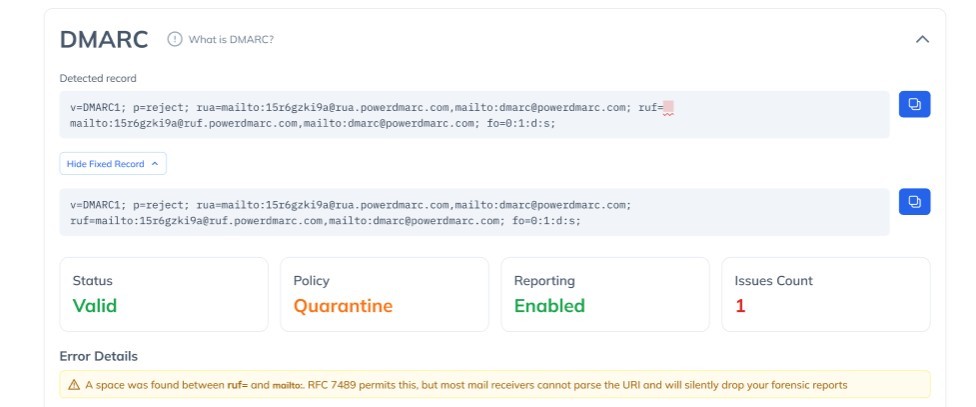
Surfacing Invisible Copy-Paste Errors That Silently Break Email Delivery and Reporting We are introducing enhanced Whitespace Detection across all primary email authentication tools, including PowerAnalyzer and PowerToolbox. Copy-paste artifacts—such as trailing spaces, zero-width spaces, non-breaking spaces, or line breaks—are often invisible to the eye but cause mail receivers to fail record parsing. This update surfaces human-made whitespace errors across your records without falsely marking legal policies as "Invalid," providing you with a clean, one-click corrected record. Key Highlights & Improvements Multi-Record Detection Scope: High-risk whitespace checks now cover DMARC, SPF, DKIM, BIMI, MTA-STS, and TLS-RPT records. High-Impact Targeting: Focuses strictly on functional failure risks—such as corrupted public keys, broken reporting URIs, malformed logo URLs, or failed SPF mechanism lookups—so you only see alerts that matter. Preserved RFC Status: Records containing whitespace anomalies remain marked as Valid because they are technically legal per standard RFCs, but issues are clearly highlighted via warning indicators. One-Click "Show Corrected Record": Inspect the issue inline and immediately view or copy a fixed version of your record to your clipboard. Non-Breaking API & Backend Additions: Adds whitespace inspection directly from DNS reads before existing processing runs, appending findings to observations without altering existing analytics workflows. Expanded Visual Indicators & UI Flow Overview & Issues Count Amber Warning Badges: When a high-risk whitespace issue is detected on a valid record, a small amber warning badge (⚠ warning) appears on the record's Overview card. Severity Color Hierarchy: The Issues Count card dynamically updates its color based on issue severity—displaying in orange for warning-level issues (like whitespace anomalies) and red for invalid records. If a record is already marked as "Invalid" (red), the warning badge is hidden to prevent visual clutter. Centralized Observations Table A new row is automatically added to the top-level Observations table detailing the Risk, Severity, Impact, and Mitigation steps specific to that record type. In-Section Inline Highlighting Character-Level Indicators: Inside each expanded record section, the detected record displays with the problematic character highlighted in red with a wavy underline. Error Details Listing: The Error Details section displays the warning copy in orange, prioritizing any red invalid items first followed by orange warning items. Show Corrected Record Button: Click the Show Corrected Record button below any detected record to expand a clean container with a dedicated copy-to-clipboard action